Technical communicators might work as researchers or practitioners, or both. Stop reading if you belong to the former two groups.
Keep reading if you somehow belong to both worlds. This blogpost introduces a tool that helps you to stay organised in academic writing: a reference management tool.
- Researchers already use this kind of tool as they need it all the time to professionally produce academic texts, e.g., journal articles, book sections, or entire books.
- Practitioners typically do not need to reference or cite scholarly sources and therefore, might not be interested in this type of tool.
If you are a researcher just starting out or a practitioner aiming to also become active in the research community, you might wonder how to keep track of all the literature you looked into. This is where a reference management tool comes into play. There are several, with EndNote, BibTex, and Zotero, among others. In the following, you will read about how to use EndNote.
To keep this tool review as short and insightful as possible, the information given is rather conceptual. For any hands-on advice, EndNote provides comprehensive and detailed information to get you started.
Personally, I missed such general overviews when trying to decide whether it was worth the time to learn a new tool like EndNote or not. As I could not find out quickly what the benefits of using it would be, I decided to write my first academic texts without a reference management tool. I learned it the hard way: how time-consuming it is to keep track of the literature you want to cite in your text.
For the following tool review, let us assume you are looking into journal articles about a topic in your field.
Reference entries in Endnote
Download the citation data of a piece of literature (= a reference) to EndNote
You might be familiar with literature databases offering to download citation data. Have you ever used this function? It typically provides you with a file that contains all relevant metadata for the journal article you selected, like the title, the author(s), the year, the publisher, and even the abstract. Import such files to EndNote during your literature research and you will end up with a collection of all references relevant to you.
Download the full text and link it to your reference entry
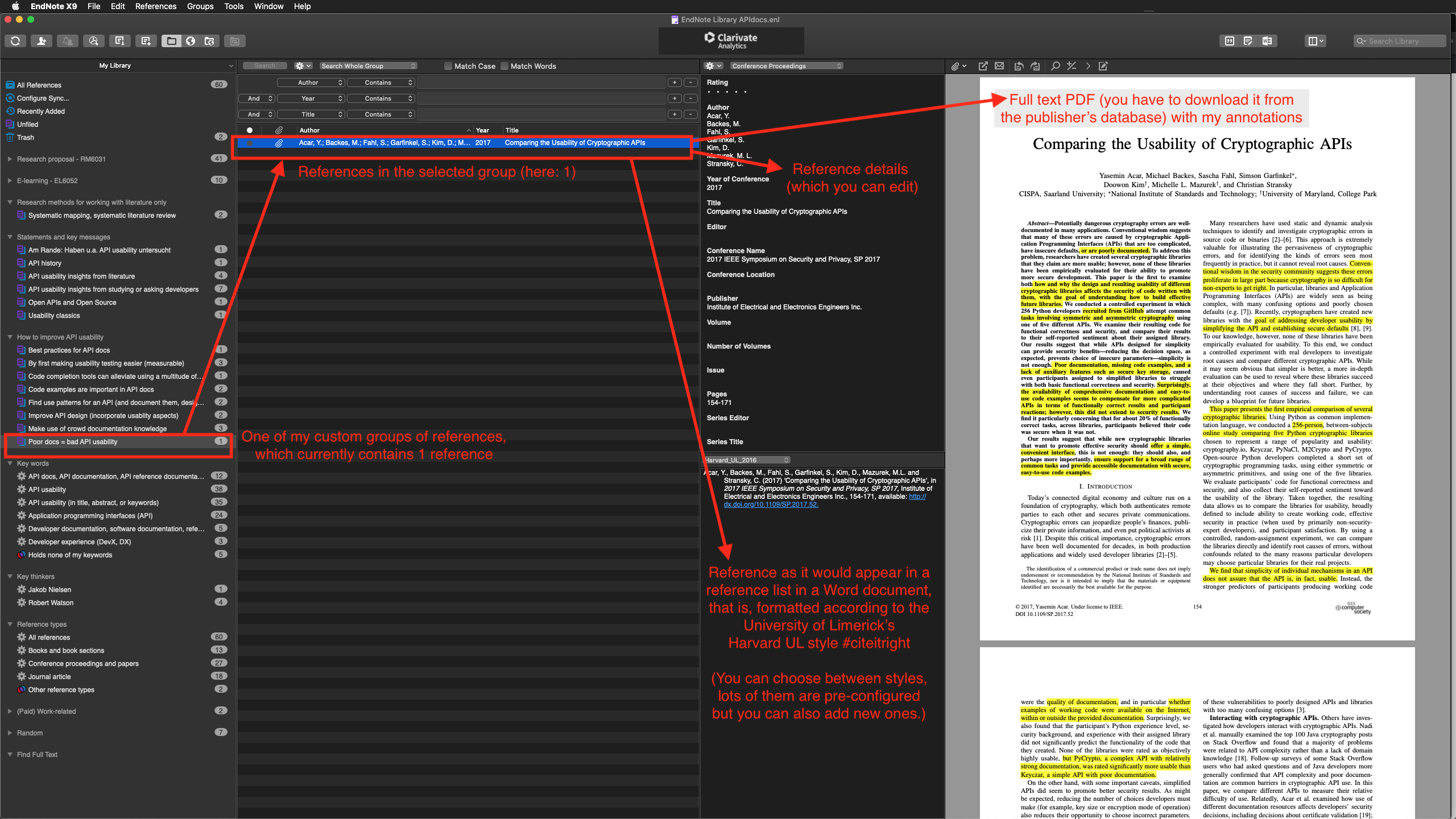
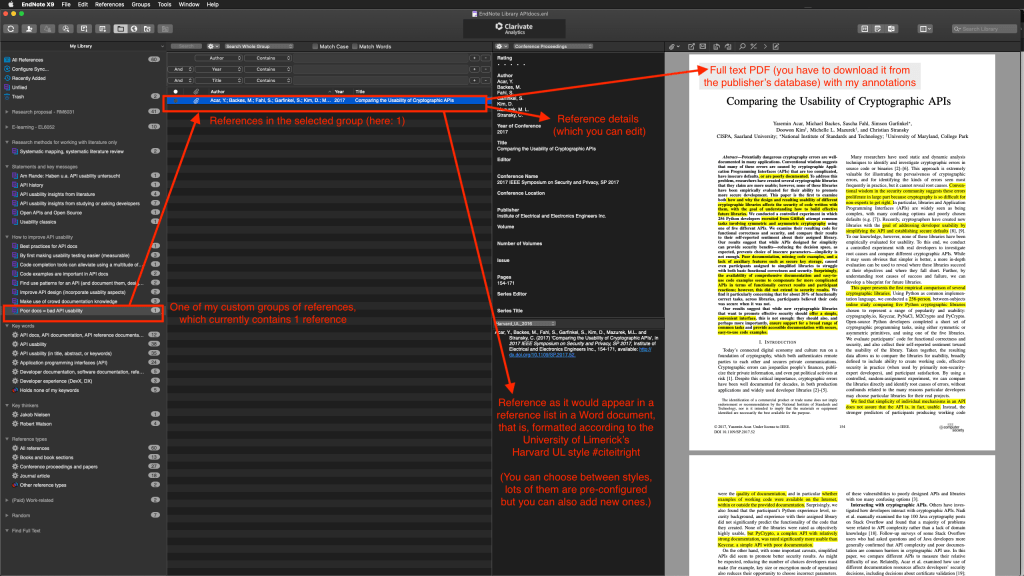
If available, also download the full-text PDF for your reference and link it to your reference entry in EndNote. It is a significant advantage to have the literature itself and the citation data of the literature in the same place.
Once inserted to EndNote, you can read and annotate and even search the full-text PDF as well as your annotations in it. That means you could type in an author’s name or any search term and search it over all the references you have to find out which full-text PDFs contain them. For example, you could find out which journal articles mention a particular key thinker or key term of your field.
Access your references from Microsoft Word
EndNote and Microsoft Word are compatible once you set them up for each other. When writing in Microsoft Word, you can then easily add EndNote references to your writing. You will also get an automatic reference list or bibliography in your Word document.
Select the template for your reference list in Microsoft Word
The publisher or institution you are writing for probably expects your text to be delivered adhering to a specific reference style. With EndNote, you can select from preinstalled reference styles or add new templates to define the formatting style for the references in your text. The style you choose in EndNote will be used when adding references in Microsoft Word. You can preview the reference list entry in EndNote.
How the above-mentioned looks like in Endnote
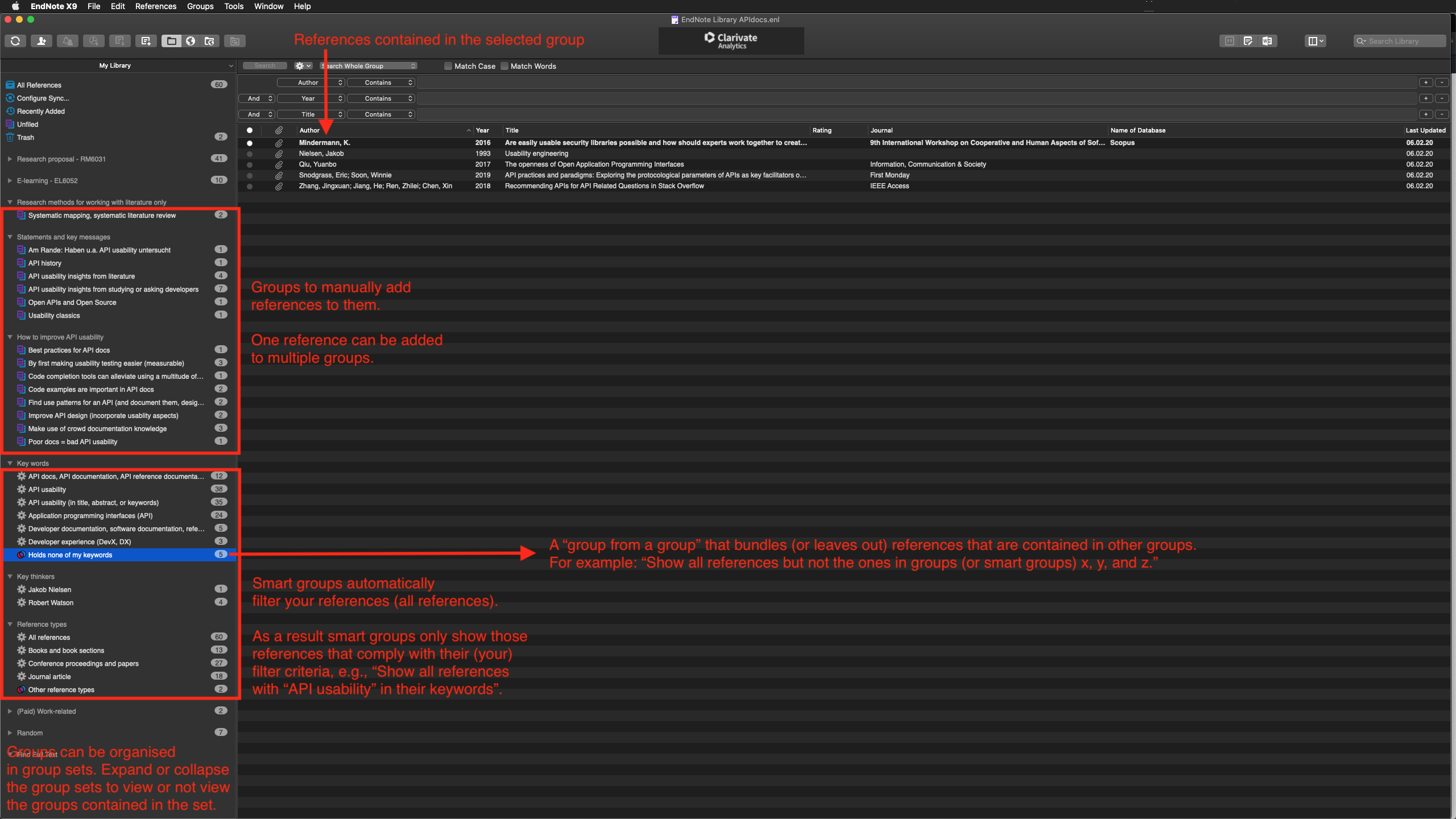
The following screenshot shows where to locate the information mentioned above in EndNote. Click here to enlarge the image. (Please note that I use EndNote in dark mode on a Mac—it might look different on your computer.)
Keep track of your reference entries
Organise your references by adding them to groups
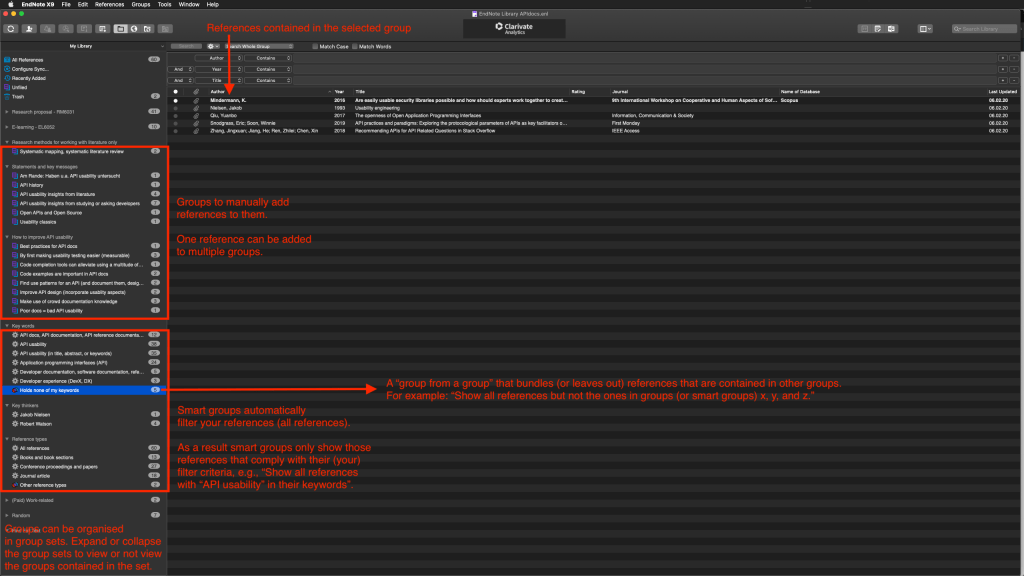
Organise your references in groups to find references quickly when you need them. Create groups, for example, to cluster your references according to their main ideas or main findings. You will be happy to have those groups when writing your academic text: you will know what to write about, but you might have forgotten where you learned about a fact or a study result. With groups indicating such things, your life becomes easier at the point of putting the right sources to your academic writing.
Use smart groups to find out more about your collection of references and your topic
Find out more about your collection of references by filtering it according to custom filter criteria. You could create smart groups to answer the following questions: How many references carry certain keywords (or not)? Which references were published most recently? What are all the references a specific author contributed to? Which references mention a particular key thinker or key term? How many books/journal articles/conference proceedings do you have in your reference collection?
How the above-mentioned looks like in Endnote
The following screenshot shows the mentioned ways of organising your references. Click here to enlarge the image.
Give it a try
The key features of EndNote, as described above, may be convincing enough to give it a try. Please keep in mind that EndNote is commercial software. As a student at the University of Limerick, I am thankful to be able to use it under the university’s license. If you are a UL student too, click here to find out more about EndNote at UL. You might also consider using a free reference management tool like Zotero. Although a different tool, some of the general concepts are the same.
There are more features to EndNote than I currently use, like sharing your collection of references with other researchers. And there are probably more ways to employ EndNote efficiently. What are yours? Let’s talk about your experience with EndNote in the comments.
 API docs and me